 MacTools
 How to use lua.tools on Mac with native Steam.
MacTools brings a LuaTools-inspired manifest workflow to the Steam application already installed on your Mac. There is no extra Windows Steam client in this workflow.
How lua.tools and MacTools fit together
lua.tools provides its own source and download service. MacTools is a separate native macOS companion that uses this service after you sign in. It adds an import panel to Steam store pages through the bundled macSteam runtime.
MacTools is inspired by LuaTools and SteamTools. It is not an official LuaTools port, and your MacTools subscription does not include a lua.tools account or any third-party subscription.
The Add via MacTools workflow
- Check the Mac requirements and Steam compatibility and the current beta availability.
- Once supporter access is available, download MacTools from your account, move it to Applications and open it. Choose Activate supporter key… from its menu bar icon and activate your key on one Mac.
- Choose Install Steam integration. If macOS blocks it, allow MacTools in System Settings → Privacy & Security → App Management, then retry. Let Steam restart when needed.
- Choose MacTools · Sign in to lua.tools from the menu bar and complete the sign-in inside its window. This login is separate from your MacTools supporter account.
- Open the game’s page in the native Steam store and click Add via MacTools. Choose an available manifest source, then click Add game.
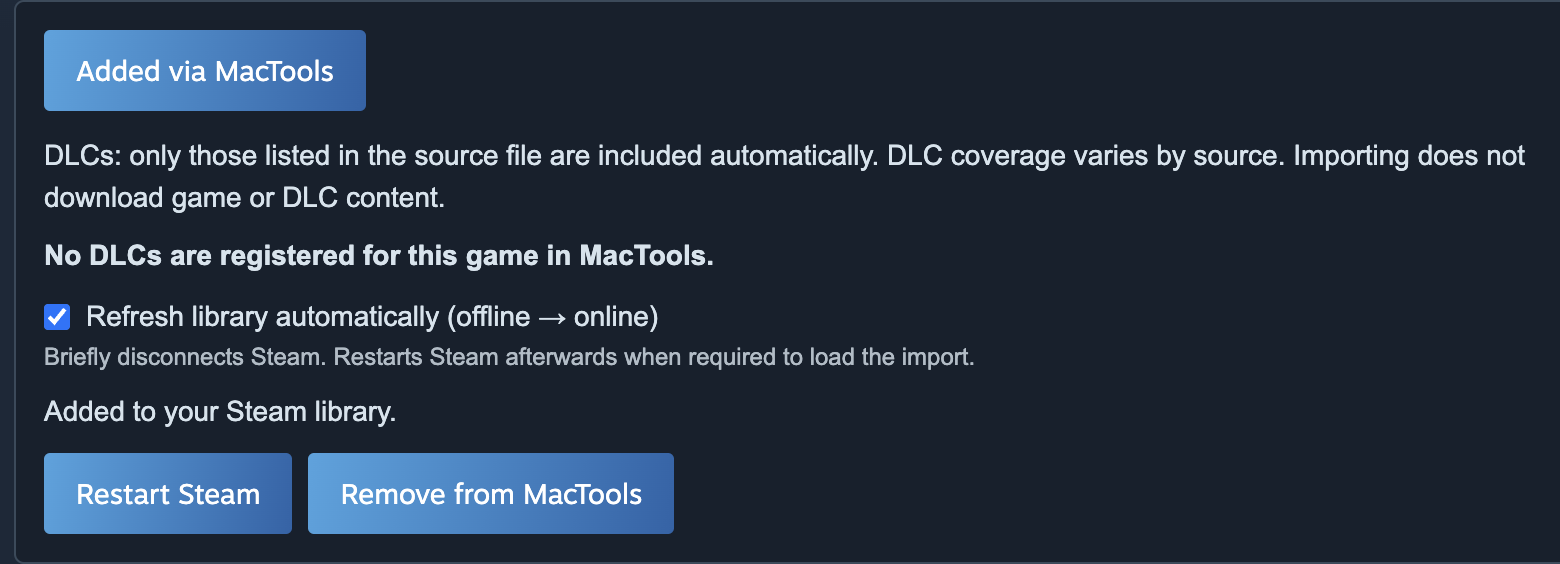
- After import, read the DLC count and open View DLC list if entries are listed. DLC information appears after the source has been imported; it does not mean every DLC is included.
- Use the Refresh library automatically (offline → online) checkbox if you want MacTools to refresh the library. Steam may restart automatically to load the runtime configuration. Then check the game’s library entry.
Does adding a game include all its DLCs?
No. MacTools registers only the DLC entries listed in the selected source or local file. Different sources can contain different entries. The panel explains what the import includes; it does not download game or DLC content or verify that each DLC will work.
Can I use it with notProton?
Yes, MacTools works well with notProton in our tested setup. MacTools handles imports; notProton provides a separate Steam Play workflow through CrossOver for compatible Windows games. Compatibility varies and those tools must be installed separately.
If no source is available
Confirm that you are signed in to lua.tools, then press Add via MacTools again. An unavailable source is not fixed by purchasing MacTools access. Check the lua.tools service status, or use Import .lua / .zip with a supported local file for the selected game. Follow the local-file import instructions for that route.
If the import succeeds but the library has not changed
Read the message in the MacTools panel. Select Restart Steam if requested, or use the automatic refresh checkbox for the next import. Switching offline and online can refresh the library connection, but this runtime can still require a restart to read newly imported configuration.
Beta access and limitations
MacTools targets Apple Silicon and macOS 15 or later. Supporter access is €5 per month with one key for one Mac. Check the homepage for the current sign-up and subscription status. Source availability, third-party services and Steam updates can affect the experience.
MacTools does not include games, DLC purchases or a guarantee of gameplay. Use it only for content you are entitled to use. Read the beta terms and return to the MacTools homepage for more details.