 MacTools
 How to use the Steam Tools workflow on Mac.
Looking for Steam Tools on macOS? MacTools is an independent companion inspired by SteamTools and lua.tools, built for the native Mac Steam client.
What MacTools does on macOS
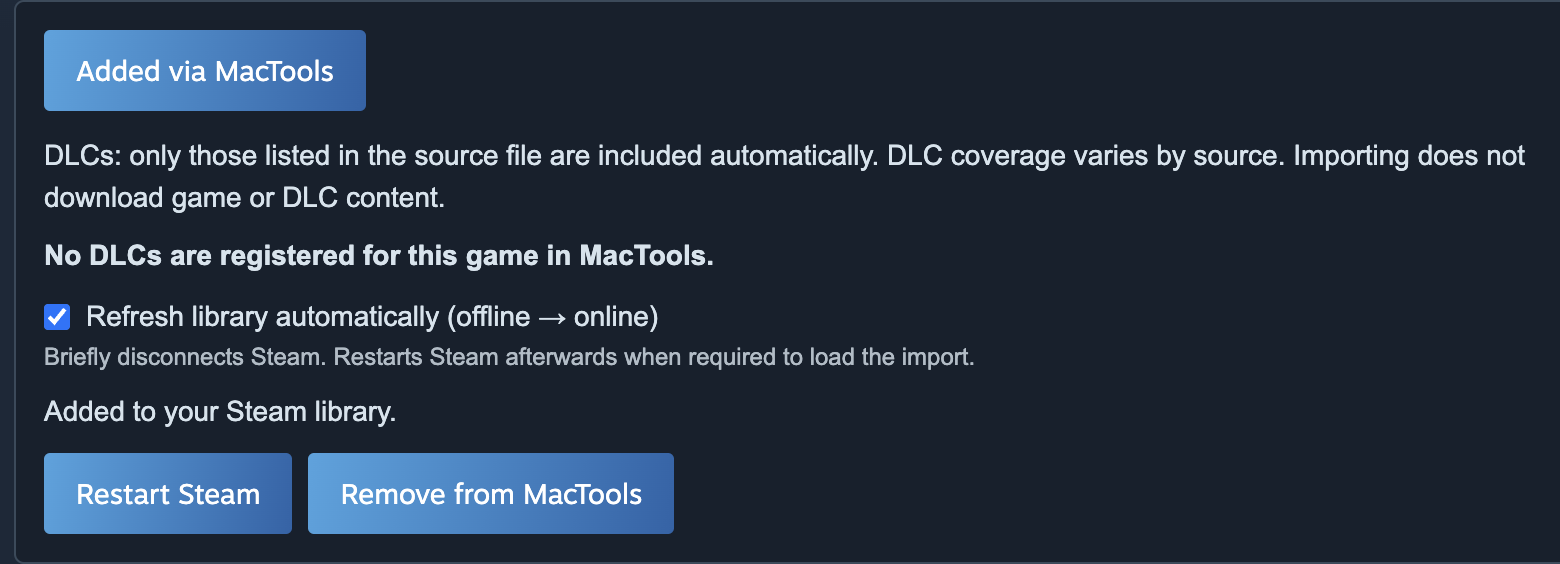
MacTools lives in the menu bar and adds Add via MacTools to Steam store pages. It imports manifest entries from supported sources or local .lua and .zip files. You can review the DLC entries included in a source and choose an automatic library refresh after an import.
This is an independent implementation using the macSteam runtime. It is not an official SteamTools release for Mac and is not affiliated with Valve, SteamTools or lua.tools.
Requirements and compatibility
- An Apple Silicon Mac running macOS 15 or later.
- The native Steam application for macOS.
- An active supporter key for the distributed MacTools beta.
- A lua.tools account when using its source download service.
The bundled runtime was tested with Steam build 1788652215. Steam updates can affect compatibility. Intel Macs and every future Steam build are not covered by the current beta validation.
Native Steam and Windows games are separate questions
Importing a manifest does not make a Windows game compatible with macOS. MacTools works well alongside notProton in our tested setup. Install notProton and CrossOver separately if you need them for compatible Windows games. Results depend on the game and your setup.
What an import does not include
MacTools does not include game purchases, game files or DLC purchases. Only DLC entries present in the imported source are registered. Use imports only for content you are entitled to use; a library entry is not a guarantee that a game or DLC will run.
Install MacTools and connect native Steam
- Check beta availability. Once supporter access opens, sign in to your MacTools account, start an active subscription and download the Mac app.
- Move MacTools.app to Applications, open it, then use its menu bar icon to choose Activate supporter key…. Paste the key shown in your MacTools account.
- Choose Install Steam integration. If macOS blocks changes to Steam, go to System Settings → Privacy & Security → App Management and allow MacTools to modify applications, then try again.
- Let Steam restart when prompted and reopen the game’s store page in the native Mac Steam client. Keep MacTools running so its store panel can respond.
Import a local Lua or ZIP file
- Obtain a supported manifest file for content you are entitled to use. Match the file to the Steam App ID of the game you intend to add.
- Open the game’s Steam store page, click Add via MacTools, then choose Import .lua / .zip. You can also choose Import .lua / .zip… from the MacTools menu.
- Select your file. After import, review the reported DLC count and View DLC list, when available. These show the entries actually listed in that import.
- For imports from the store panel, keep Refresh library automatically (offline → online) selected if you want an automatic refresh. Steam may restart to load the runtime’s updated configuration. For a menu-bar import, use Restart Steam when needed.
- Check the library after Steam reconnects. A successful entry import confirms registration, not that game content has been downloaded or that it will run.
If you want to download a source through lua.tools instead of selecting a local file, follow the separate lua.tools on Mac guide.
Common issues
- No Add via MacTools button
- Confirm that MacTools is running and the integration is installed. Restart Steam and reopen a game store page. Check the beta’s supported Steam build if an update changed the client.
- The key is refused
- Confirm the subscription is active and the complete key was pasted. A key already bound to another Mac needs a support-assisted transfer.
- The game does not appear
- Check the import result first. Use the refresh checkbox or restart Steam to load the updated runtime configuration.
- No DLCs listed
- The selected file did not contain DLC entries. MacTools does not automatically fetch all DLCs for a game.
Remove an imported entry
Open the game’s store page, select Added via MacTools and use Remove from MacTools. Restart Steam to refresh its library view. This manages the imported configuration; it is not a game-content uninstaller.
Supporter beta access
The supporter beta is priced at €5 per month for one activation key bound to one Mac. Check the current beta availability before joining. Registration and payments remain closed while setup is completed.
For the source-selection and import workflow, read our lua.tools on Mac guide. You can also explore the MacTools features and screenshots.